How Pehredar OS Works
From initial agency workspace setup to scaling multi-site guard operations across 5 seamless steps.
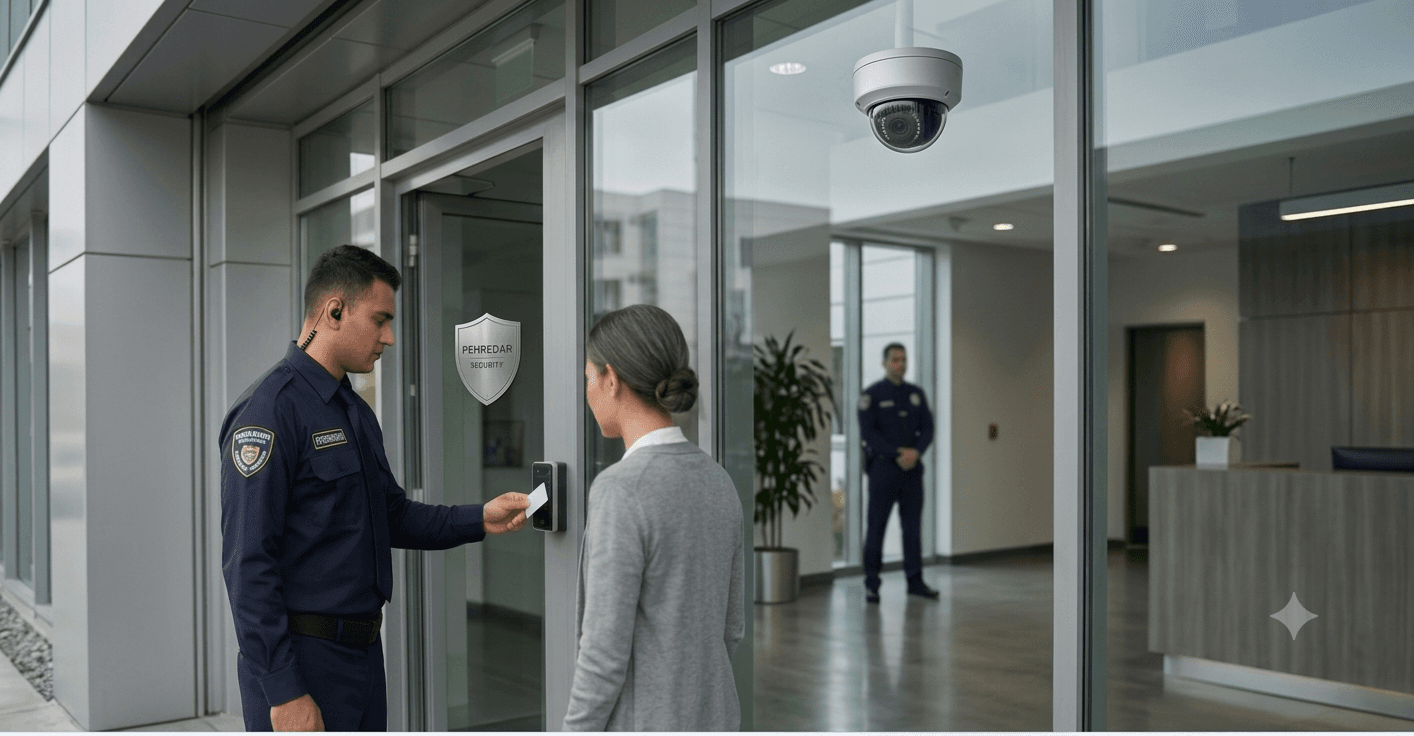
Deployment Timeline
A clear path to complete workforce control.
Step-by-step clarity designed for security agency owners and operational dispatch teams.
Setup Organization & Geofences
Configure your digital agency foundation in under 10 minutes.
Onboard commercial client profiles, define property sites, and map precision meter-by-meter GPS geofences across main gates, IT zones, and cargo docks.
- Hierarchical Client → Property Site → Sub-location mapping
- Customizable meter-by-meter GPS geofences for all branches
- Granular role-based security access matrices
Add Guards & Biometric Enrollment
Verify guard credentials & identity before their maiden shift.
Candidates complete mobile registration on their smartphones with document cloud upload, legally binding e-signatures, and live facial biometric enrollment.
- Guided mobile onboarding on personal smartphones
- Legally valid electronic signature execution & cloud KYC vault
- Real-time facial biometric matching against government ID photos

Monitor Live Operations
Track officer locations live over persistent WebSocket streams.
Guards clock in strictly inside site geofences. Command monitors live telemetry, enforces NFC patrol tours, and receives instant panic alarms.
- Live interactive GPS telemetry maps updated over WebSockets
- NFC tag & QR checkpoint patrol verification
- Instant AI-driven GPS anti-spoofing alarm alerts
Generate Statutory Payroll & Reports
Automate Indian PF, ESI, Professional Tax, and GST client billing.
Verified shift logs automatically feed statutory payroll calculations and generate contract-compliant GST commercial invoices in 1 click.
- Automated Indian PF & ESI statutory calculations
- 1-click bank transfer payout CSV export
- GST tax-compliant commercial client invoicing
Scale Your Business
Expand across multi-city properties with complete confidence.
Impress corporate clients with digital audit proof, lower administrative overhead, and win lucrative enterprise guarding contracts.
- Centralized command for 20 to 20,000+ deployed guards
- Transparent client portal with downloadable audit logs
- Higher agency operating margins and client retention
Transform Your Security Agency Operations
Book a live 30-minute demonstration with our operational engineering team.
Schedule Live Demo